Import customers from a spreadsheet
Updated 25 Oct 2026
If you already keep your customers in a spreadsheet, you can bring them across in one go instead of typing each one.
The import button is on the computer version of the Customers screen. Not there? See I can't see a setting or button. On a phone you add customers one at a time.
Before you start
Save your spreadsheet as a CSV file. In Excel or Google Sheets, choose Save as or Download, then pick CSV.
The first row must name the columns:
- A name column and a phone column are required.
- A company column is optional.
RateMate also recognises common alternatives. For the name: customer, customer name, full name, contact, contact name. For the phone: phone number, mobile, mobile number, cell, cellphone, cell number, number, whatsapp, whatsapp number, contact number, tel. For the company: company name, business, business name, organisation. Capital letters do not matter.
Phone numbers can start with 0 or +27. Spaces and dashes are fine.
Import your file
- Tap Customers, then Import CSV.
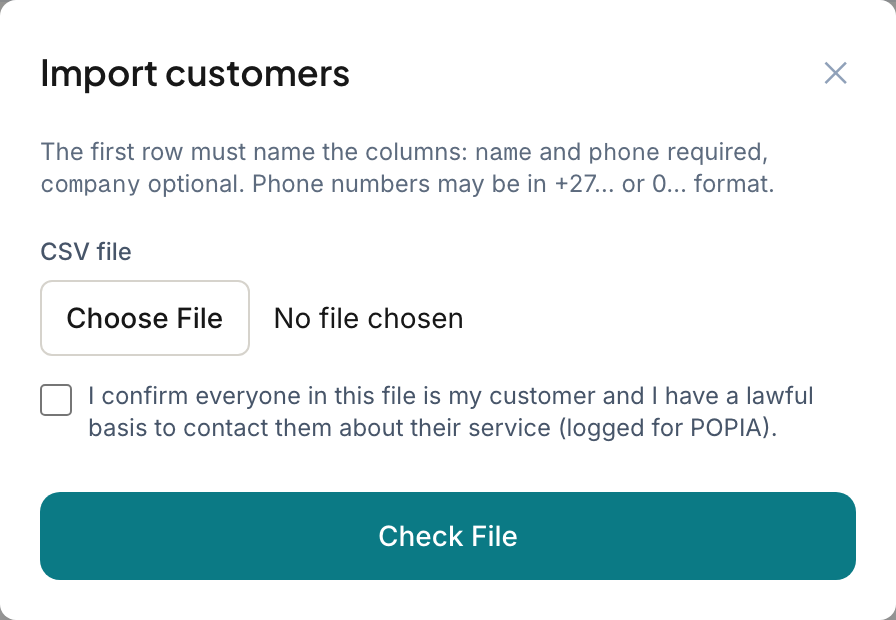
- Under CSV file, choose your file.
- Tick the consent box: "I confirm everyone in this file is my customer and I have a lawful basis to contact them about their service (logged for POPIA)."
- Tap Check File. RateMate shows how many customers are ready to import, and lists any rows it will skip.
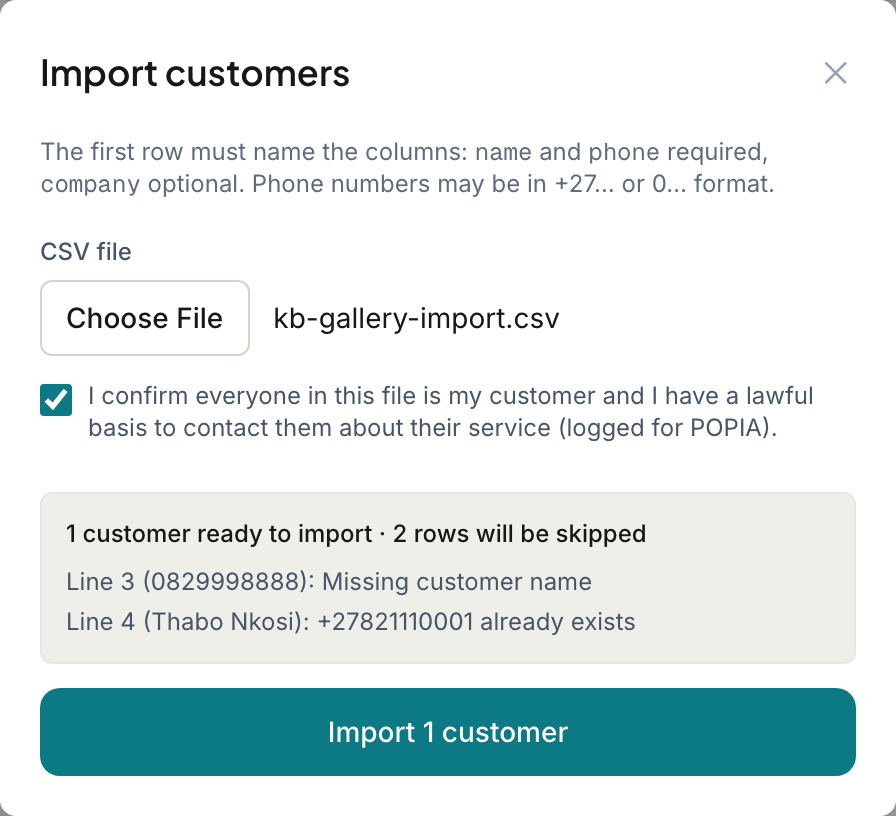
- Tap Import followed by the number, for example Import 42 customers.
You see how many were imported and how many rows were skipped. Tap Done.
If you choose a different file after checking, you need to tap Check File again.
Limits
- Up to 1,000 customers in one file. Split a bigger list into two files.
- The file must be under 1 MB.
What gets skipped
The preview names the line number and the reason for each skipped row. It shows the first 20.
- No name, or a name shorter than 2 characters.
- A missing phone number, or one that is not a valid number.
- A number that appears twice in the file. The first one is kept.
- A number you already have as a customer. Their details are not changed.
- A customer who opted out earlier. They are not added back. See Opt a customer out or back in.
Good to know
- Importing sends nothing. Send requests when the jobs are done, as in Send a feedback request.
- The consent tick is required, and RateMate records it for each customer imported.
- Members can import too.
Related articles
Still stuck? Email support@ratemate.co.za