Tag who did the job
Updated 25 Oct 2026
If more than one person does your jobs, tag the right one when you send the request. When the rating comes back, you can see who it is about.
Tagging is always optional.
Before you start
The Who did the job? row only appears if you have added staff. If you do not see it, add your people first under Manage, then Staff. Only owners can add staff.
Tag a request
- Tap Request (on a computer, + Request Feedback) and pick your customer.
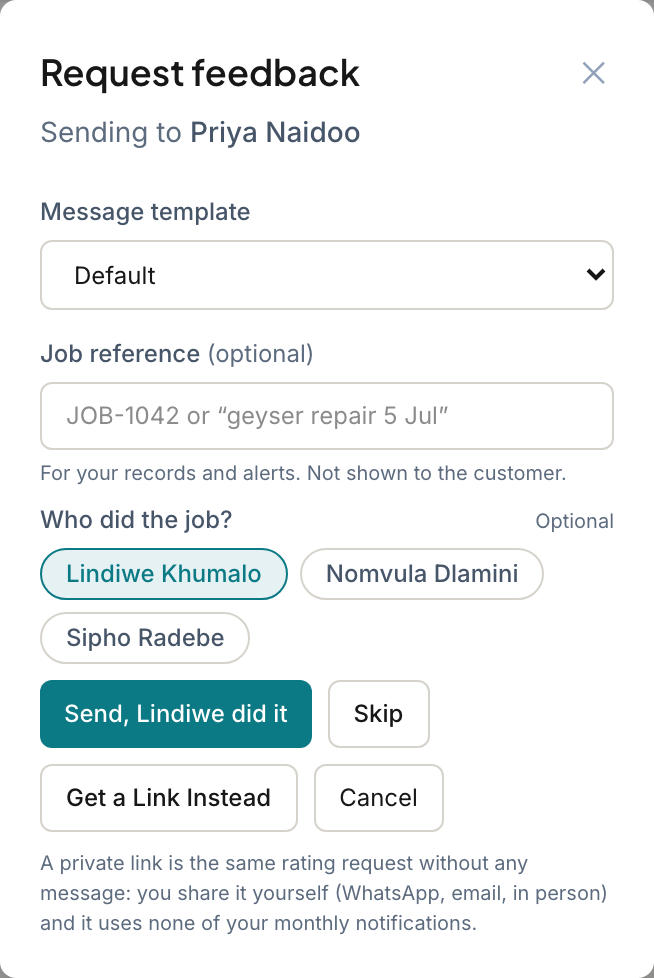
- Under Who did the job?, tap the person's name.
- The send button now reads Send, Craig did it (with that person's first name). Tap it.
Tapped the wrong name? Tap it again to clear it, or tap another name.
Send without a tag
The plain Send Request button sends with no tag, so you never have to pick anyone. Once you have picked a name, a Skip button appears next to the send button. Tap it to send without the tag.
The same row appears when you tap Get a Link Instead, so a private link can be tagged too. See Get a rating link without sending.
Where the tag shows up
- On the feedback itself, in the Job section: "Job done by" followed by the name.
- On the person's own page under Staff, in their recent feedback.
- In the staff scores, on the plans that include them.
If a low score comes in, the alert names the person, so you know who to talk to as well as who to call back.
Good to know
- Members can tag too. Anyone who sends requests sees the row.
- Only active staff appear. If you archive someone, they no longer show as a choice.
- You cannot change a tag from the portal after the request is sent, so check before you tap send.
- Tagging is free on every plan. Seeing scores per person needs a plan that includes the staff scoreboard.
Related articles
Still stuck? Email support@ratemate.co.za