Add and manage staff
Only owners can do thisUpdated 25 Oct 2026
Staff are the people who do your jobs. Add them so you can tag who did a job when you send a request, and see how each person is rated. Only owners can manage staff, and it works on every plan.
Staff or team member?
A staff member is a name you tag a job to. They do not need to sign in, and most never do. A team member is someone with their own login to RateMate, which is a Team plan feature. See Invite a team member.
The two are separate. A person can be both, and you can connect their two records with Link, described below.
Add a staff member
- Tap Manage (on a computer, Settings), then Staff.
- Tap Add staff member (on a computer, + Add staff).
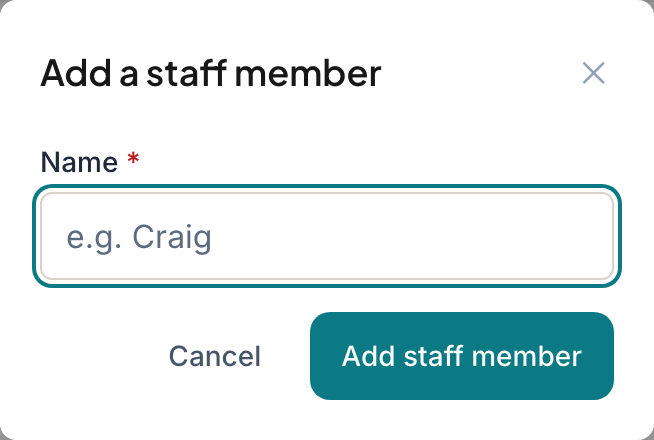
- Type their Name, for example "Craig".
- Tap Add staff member.
Names must be unique among your active staff. If you see "Someone active already has that name", use a different name, such as one with a surname or initial.
Rename someone
- On the Staff list, tap the person.
- Tap Rename, change the Name, then tap Save.
Past feedback shows the new name.
Archive someone
Archive a person who has left, so they stop appearing as a choice.
- On the Staff list, tap Archive beside their name. On a computer, tap the person first, then Archive and their first name.
- Confirm with Archive and their first name.
Their past feedback stays on record. They no longer show in the staff scores or in the Who did the job? choices, and any personal score link they had stops working.
Restore an archived person
Archived people do not appear in the Staff list. Right after you archive someone from their own page, that page stays open with an Archived label. Tap Restore to active there to bring them back. If someone active has taken their name in the meantime, RateMate tells you so and does not restore them. If you have already left that page, email support@ratemate.co.za and we will restore them for you.
Link a staff member to a login
Do this only for people who both do jobs and sign in. Their scores stay on the staff record.
- Tap the person on the Staff list.
- Under Linked login, tap Link.
- In the Link to a login box, tap the team member who is the same person.
Only people already on your team appear. If the list is empty, invite them first. To undo it, tap Unlink. Removing someone from your team unlinks their staff record for you.
Good to know
- Names can be up to 80 characters.
- Staff work on every plan. Scores per person need the Team plan. See Staff scores and personal links.
- To tag staff when you send, see Tag who did the job.
- Closing your account erases staff names too. See Close your RateMate account.
Related articles
Still stuck? Email support@ratemate.co.za