Customise your rating page
Only owners can do thisUpdated 25 Oct 2026
Your rating page is what your customer sees when they open their rating link or scan your QR code. You can set its colour and change its wording. Only owners can do this.
Everyone sees the same page and the same Google review button, whatever score they give.
Open it
Tap Manage, then Rating page. On a computer, tap Settings, then Rating page.
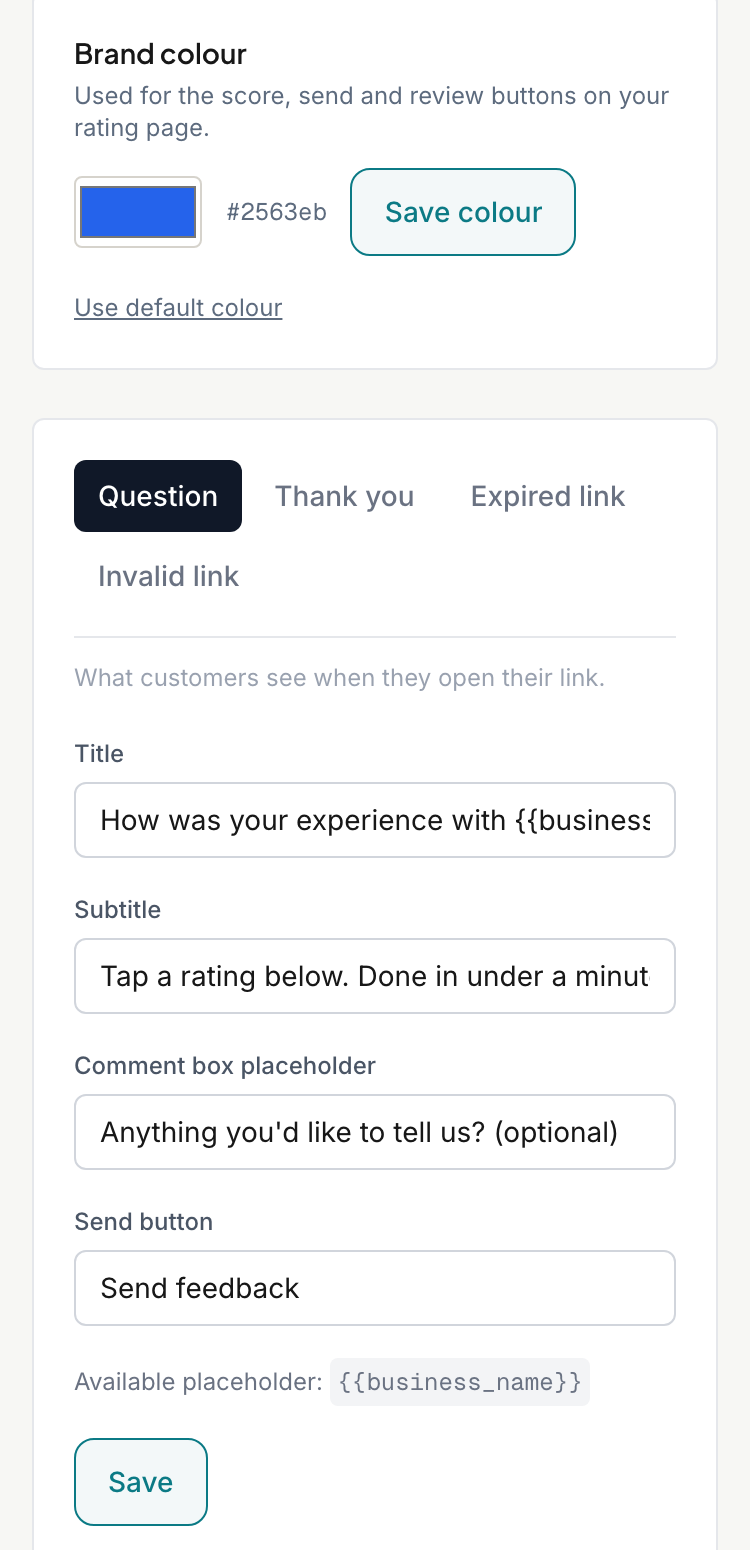
Set your brand colour
- In the Brand colour card, tap the colour swatch and pick a colour.
- Tap Save colour.
The colour is used for the score, send and review buttons on your rating page. Until you save one, the page uses the default dark grey. To go back, tap Use default colour.
Your logo is added under Business profile, not here.
Change the wording
The editor has 4 tabs, one for each version of the page. Each tab shows its own fields and a live preview beside them.
- Tap a tab:
- Question: what customers see when they open their link. Fields: Title, Subtitle, Comment box placeholder and Send button.
- Thank you: shown after they rate. Fields: Title, Subtitle and Google review button.
- Expired link: shown when someone opens a link that has expired (see My customer says the link doesn't work). Rating links last 14 days.
- Invalid link: shown for a link that does not work.
- Edit the fields. The preview updates as you type.
- Tap Save. You see "Saved." when it worked.
Every field is required, and each can hold up to 300 characters. Type {{business_name}} to put your business name in. It works everywhere except Invalid link, because RateMate cannot tell whose link it was.
In the Question preview, tap a score to see the comment box. The preview never sends anything.
The Thank you preview always shows the review button. On the real page it only appears once you have connected your Google page.
Go back to the default
- Reset Fields to Default Copy puts RateMate's wording back in the fields. It appears once your fields differ from the default, and it only changes what you see until you tap Save.
- Use RateMate's default page appears at the top once you have saved your own wording. It removes your wording straight away. Your brand colour stays.
Good to know
- Walk-in customers see this page with a few extra fields. See Walk-in ratings.
- Your changes apply to every new and existing link. Your customer does not need a new link.
- To get a link or QR code to share, see Your QR code and walk-in link.
Related articles
Still stuck? Email support@ratemate.co.za