Set up WhatsApp commands
Only owners can do thisUpdated 25 Oct 2026
RateMate only answers a WhatsApp number it knows is yours. You prove that once by verifying your number, then you start the chat. Only owners can do this.
Verify your number
If you did this in the setup steps, skip to the next section.
- Tap Manage, then Account, and find Your WhatsApp number.
- Type the number of the phone you use for WhatsApp and tap Send me the code.
- A 6-digit code arrives by SMS. It can take a minute. Type it under The code from the message and tap Verify.
Your number now shows Verified. The code lasts 10 minutes and allows 5 tries. If it runs out, tap Send a new code.
Start the chat
- Tap WhatsApp us a customer's number on the last setup screen. Or, until your first real request is sent, tap Message us on WhatsApp on Home.
- WhatsApp opens a chat with RateMate with "menu" already typed. Send it.
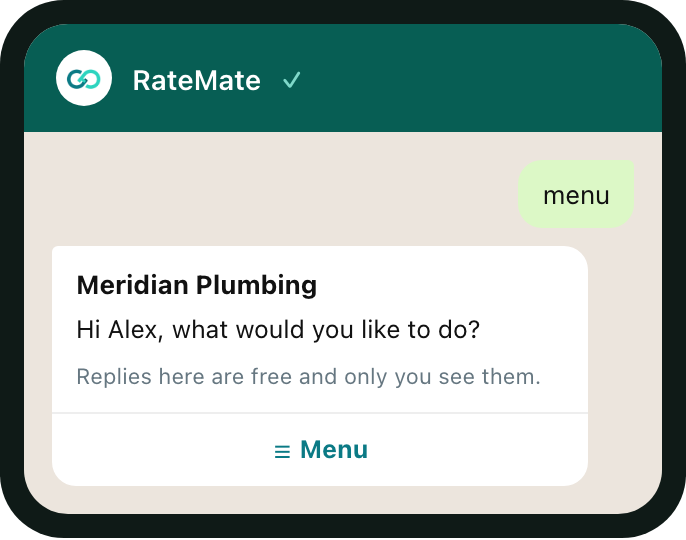
- RateMate replies with a greeting and a Menu button. See The WhatsApp menu.
Both buttons only show once your number is verified. Your welcome email may also name RateMate's number. Save it in your contacts as RateMate so the chat is easy to find.
Good to know
- Send from the number you verified. A message from any other number gets no reply.
- If you change your number on Account, it stays unverified until you verify the new one.
- Verifying is separate from getting alerts on WhatsApp. After you verify, RateMate asks "Get your low-score alerts on this number too?". See Handle a low-score alert.
No reply?
- Check Account shows Verified next to the number you are sending from.
- Send menu. The word start does not open the menu.
- A closed business gets no replies.
- Code not arriving? See Go through the setup steps.
Related articles
Still stuck? Email support@ratemate.co.za