Go through the setup steps
Only owners can do thisUpdated 25 Oct 2026
Right after you sign up, RateMate walks you through 4 short steps. Each one is optional. ← Back takes you back a step, and if you close the page you pick up where you left off. Only owners see these steps.
Go through the steps
Your trade. Under "What kind of business are you?", pick the closest match, or leave it on Prefer not to say, then tap Next. This also decides what the last screen puts first. See Send your first request.
Google. The screen is headed "Are you on Google?". RateMate searches for your business name for you. Tap your business in the results and you will see "Connected to" and its name, then tap Next. If it found the wrong one, tap Not the right one? Search again.
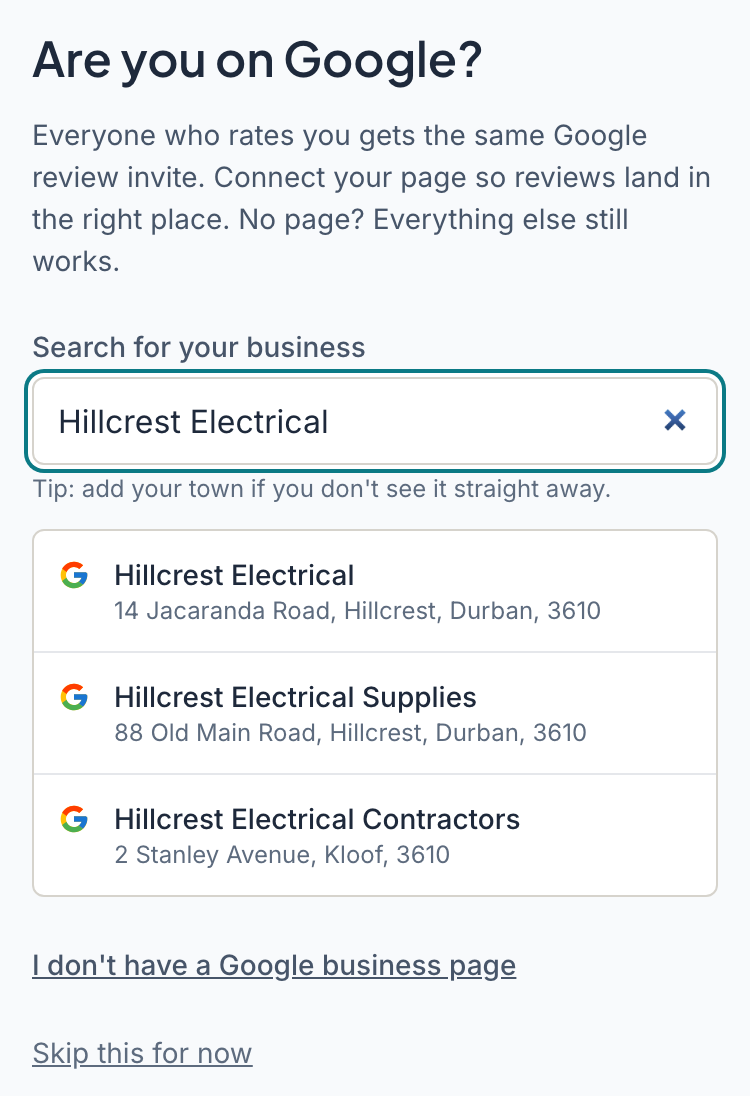
No Google business page? Tap I don't have a Google business page. RateMate notes it. Changed your mind? Tap Actually, I do have one. Or tap Skip this for now. If search is unavailable, the screen says so, and you can add your Google review link later under Manage, then Business profile.
Connecting Google means every customer who rates you is invited to leave a Google review. Without it, customers still rate you, they just are not shown that invite.
Verify your WhatsApp number. Type your own number and tap Send me the code. The 6-digit code arrives by SMS. Type it in and tap Verify. A code lasts 10 minutes and allows 5 tries, so tap Send a new code if it runs out. Verifying your number lets you run RateMate from WhatsApp.
Once you are verified, RateMate may ask "Get your low-score alerts on this number too?" (how alerts work). Tap Yes, alert me here to say yes. If you tap Not now, your alerts stay where they are. Not ready? Tap Skip this for now.
Send yourself a test. The screen is headed "See what your customers will get" and shows the real message. Tap Send me the test. The test is free and uses none of your notifications.
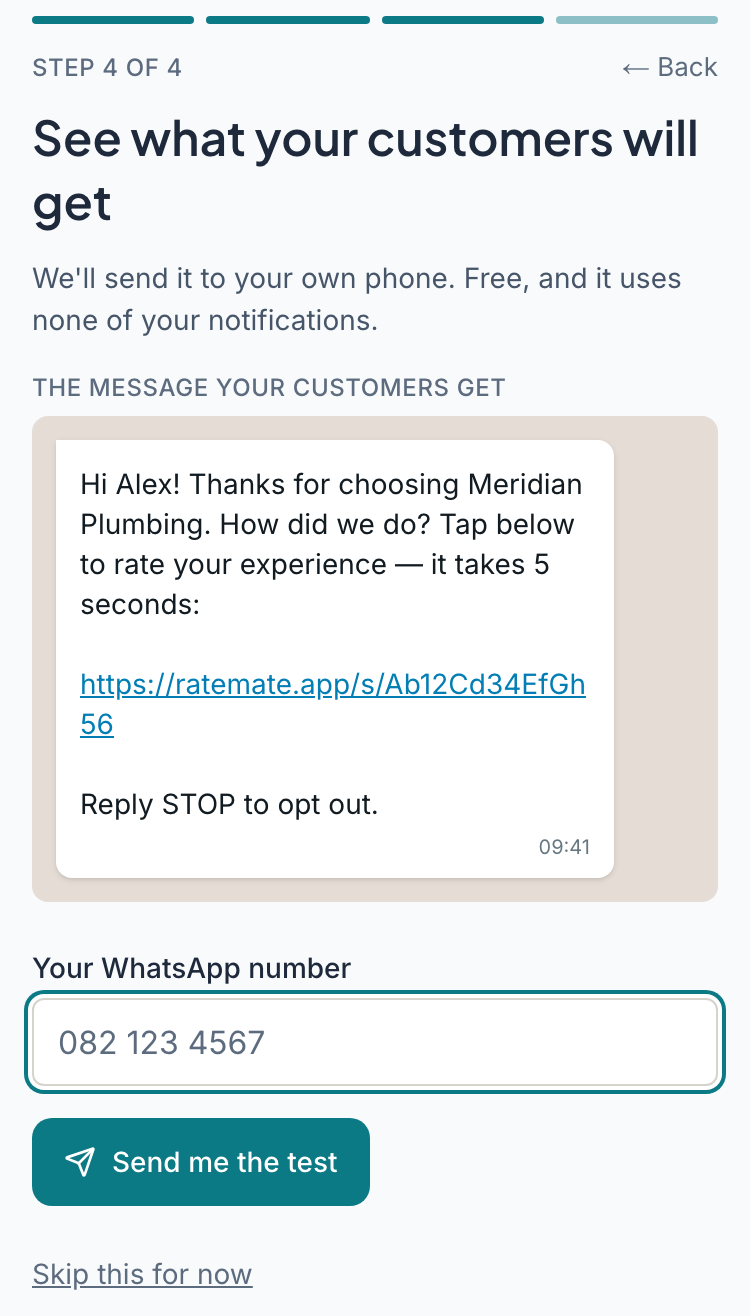
The number cannot belong to one of your customers. If it does, RateMate asks you to enter your own. Once it is sent, you go straight to the last screen, where Open your rating page shows you the page without waiting for the message. You can also tap Skip this for now.
Rate your own test
When the test message arrives on WhatsApp, tap a rating on it, just as your customer would. RateMate replies once with "That's the rating step your customers will see" and a hint for what to do next.
- If you tested with your verified number, it asks you to reply with a customer's number and first name, for example
082 123 4567 Sipho. RateMate then sends that customer the same message. - If the number was not verified, it sends a link to add your first customer in the app.
This reply comes once per business, and it uses none of your notifications.
Good to know
- If you rate your test, it shows in Feedback marked Sample until your first real rating replaces it. It never counts toward the numbers on Home (Dashboard on a computer).
- You can finish any step later. Home lists Connect Google under When you have a minute, and Manage, then Account has the Your WhatsApp number section.
Related articles
Still stuck? Email support@ratemate.co.za