Send your first request
Only owners can do thisUpdated 26 Oct 2026
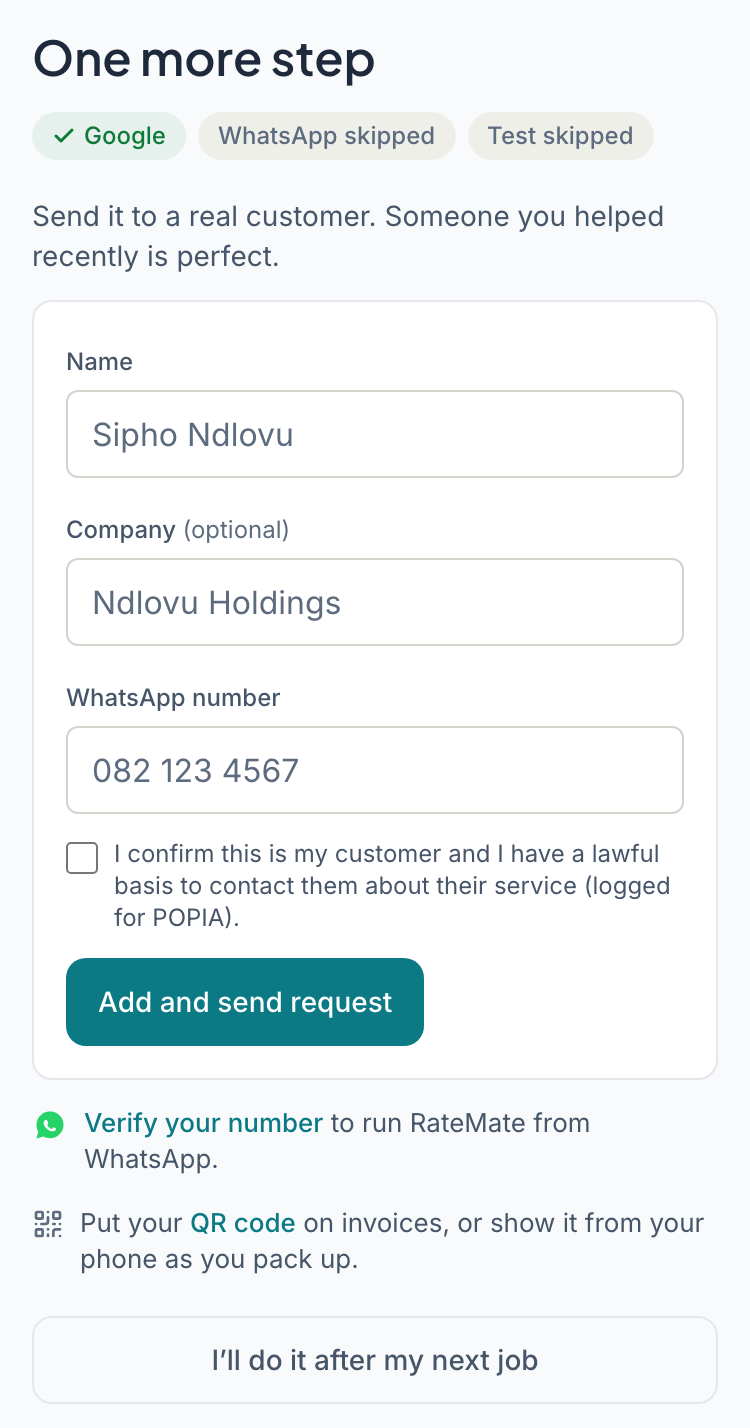
When the setup steps end, RateMate shows one last screen headed One more step. Its job is to get your first real request out, because that is when RateMate starts to be useful. Only owners see it.
Near the top, small chips summarise how setup went, such as Google, WhatsApp and Test sent, or Google skipped.
Send a request to a customer
The screen looks different depending on the trade you picked in the first setup step.
Trades that visit customers
For plumbers, electricians, pool services and similar trades, the screen says "Send it to a real customer. Someone you helped recently is perfect." The form is right there.
- Type your customer's Name. Company is optional.
- Type their WhatsApp number.
- Tick the box confirming this is your customer and you have a lawful basis to contact them about their service.
- Tap Add and send request.
You will see "Sent to" and your customer's name. Tap Go to my dashboard to carry on. Your customer gets a WhatsApp message with a link to rate you. Arrival depends on WhatsApp and their phone.
Trades where customers walk in
If you picked a barber, hair and beauty salon, restaurant or cafe, retail shop, dentist, medical or health, or fitness trade, the screen leads with your QR code instead: "The quickest way to your first rating is your QR code."
- Tap Get your QR code. It opens a page to print or show.
- Put it at the counter or till.
- Or, under "Or send it to someone you served today", use the same form as above.
Other ways in
- WhatsApp us a customer's number opens a chat with RateMate with "menu" ready to send. It appears once your number is verified. You can then send a number and first name, such as
082 123 4567 Sipho. If you skipped verifying, a Verify your number link takes you back to that step. - The QR code link takes you to your QR code and link, to put on invoices or show from your phone.
- If your plan cannot send right now, the form is replaced by a button that opens your customers list instead.
Skip it for now
Tap I'll do it after my next job (or I'll do it later if you picked a walk-in trade). You go to Home (Dashboard on a computer) and nothing is lost.
Finish later from Home
Home picks up where this screen stopped. Until you send a real request it shows the same next step: the same form, or your QR code first if you picked a walk-in trade. Under the form are Message us on WhatsApp (once your number is verified) and a QR code link.
Below it, When you have a minute lists what is still open, and only those:
- Connect Google
- Add your logo
- Print your QR pack
Members only see the QR pack, and each item goes once it is done. Your first request moves Home on to "Waiting for your first rating". Your first rating brings in the full Home, where a band such as "2 things to finish setting up" takes over. If you can never finish one, for example because you have no Google page, tap Show on that band, then Hide this for good.
Good to know
- If you rate your test message, it shows in Feedback marked Sample until your first real rating replaces it.
- Google, your WhatsApp number and your QR code can all be done later, from Home and from Manage, so skipping here costs you nothing.
Related articles
Still stuck? Email support@ratemate.co.za