Read your Home screen
Updated 26 Oct 2026
Home (called Dashboard on a computer) changes as your business does. It starts with your next step, then shows who you have asked, then your scores.
Before your first request
Until you send a real request, Home is one next step. Your setup test does not count.
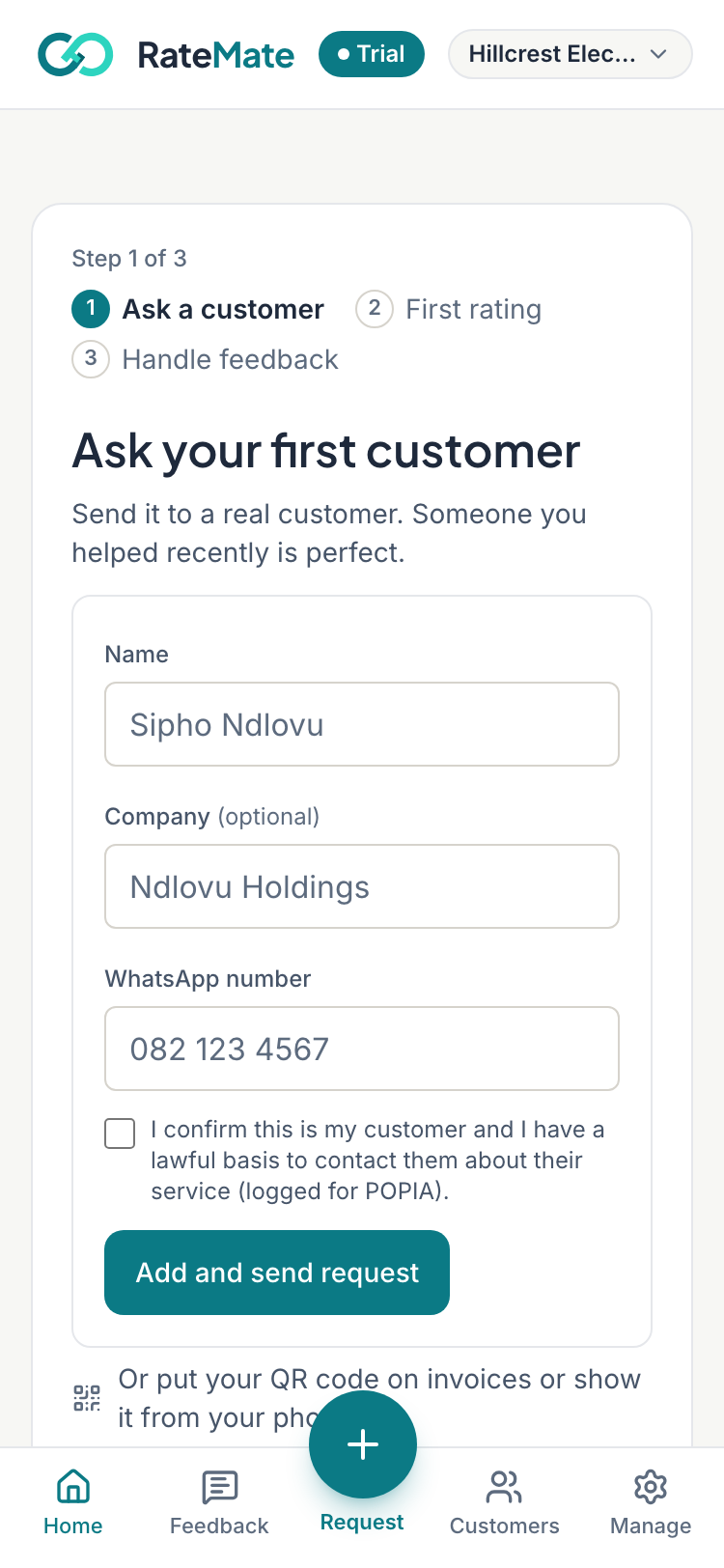
"Step 1 of 3" runs through Ask a customer, First rating and Handle feedback. Most trades see Ask your first customer and the form from Send your first request. Walk-in trades such as salons see Get your first rating with Get your QR code first. If your plan cannot send, you get a button to your customers list instead.
Below it, When you have a minute lists what is left of Connect Google, Add your logo and Print your QR pack. Members only see the QR pack.
While you wait
Once a real request is out, Home becomes Waiting for your first rating.
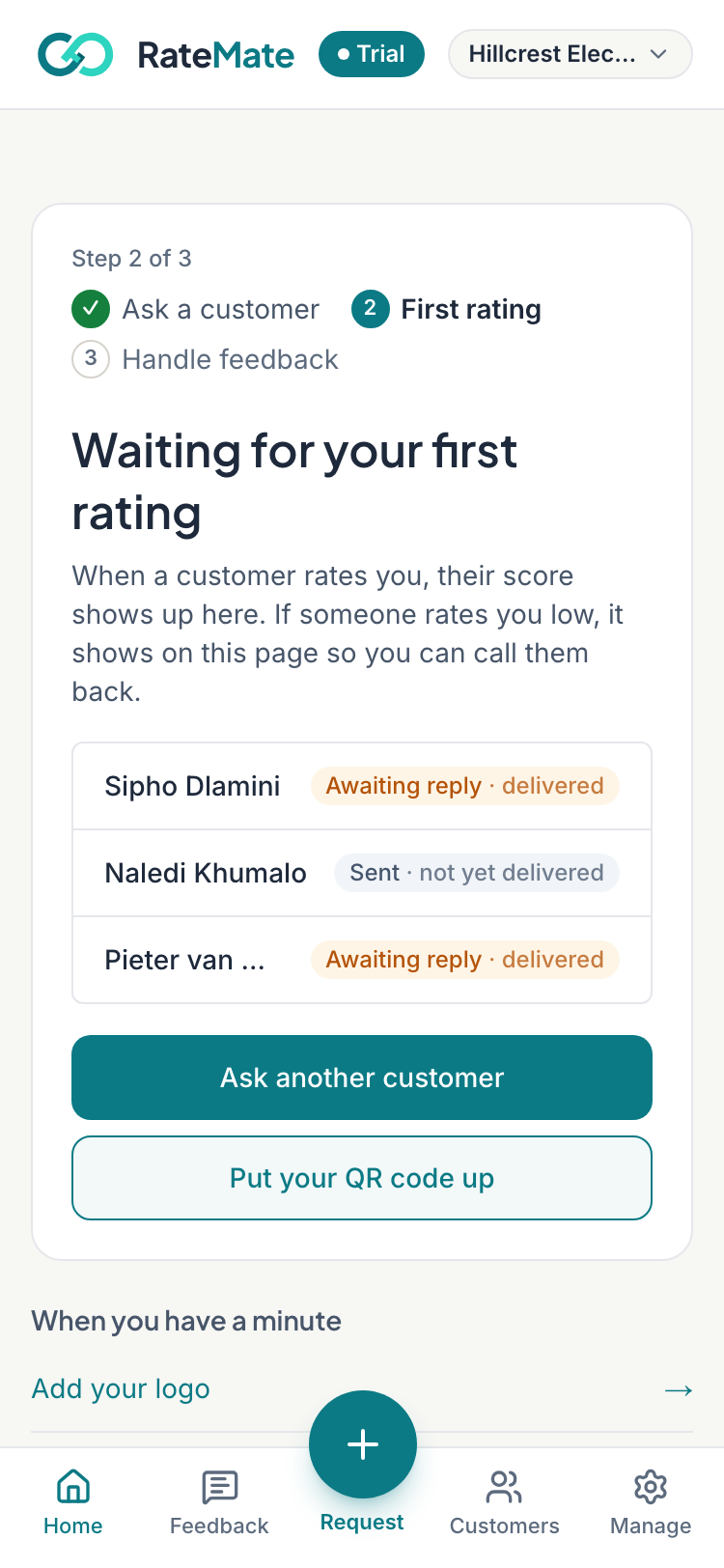
It lists your 5 latest requests, each with a status such as Awaiting reply, No reply or Failed. Tap See all for the rest, Ask another customer to send more, or Put your QR code up. It switches to the full Home when your first real rating arrives, from any route including the QR code.
Once customers rate you
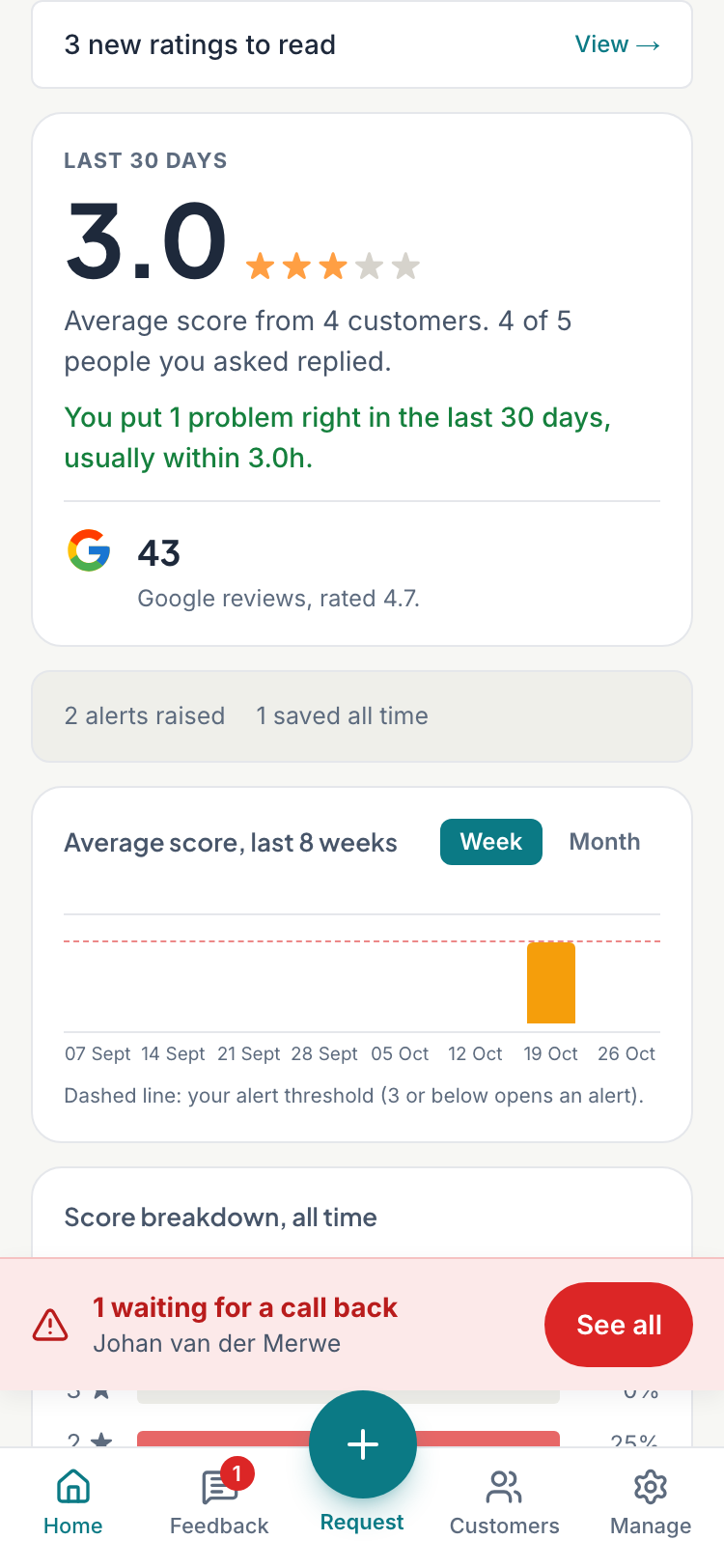
On a phone, from the top: unread ratings, your score card, trend, score breakdown, then staff scores. A computer puts the call-back queue beside your score.
- "3 new ratings to read" opens your Feedback inbox.
- The score card is headed Last 30 days. The big number averages every rating in that period, and the arrow (▲ or ▼) is the change from the 30 days before. It needs ratings in both periods.
- "Average score from 12 customers" counts each customer once. "18 of 25 people you asked replied" covers requests from the last 30 days.
- The Google row appears once your Google page is connected. It shows your review count and rating, "+3 this month" for new reviews, and how many customers tapped through to Google in the last 30 days. A tap is not a review.
- "You put 4 problems right in the last 30 days, usually within 19 hours" sits in the score card once you have put one right. A phone then shows alerts raised and saved all time. A computer shows Alerts raised, Review clicks and Problems put right.
Waiting for a call back
Every open low-score alert is a customer waiting. On a phone a red bar above the tabs says "2 waiting for a call back"; tap See all. On a computer the card beside your score lists up to 3, with Call and WhatsApp (or SMS) buttons while 1 or 2 are waiting. See Handle a low-score alert.
Trend, breakdown and staff
- Score breakdown, all time counts your 5 to 1 star ratings.
- Average score has one bar per period: red under 3, amber from 3 to 4, green from 4. The dashed line is your alert threshold. Pick Week (8 weeks, the default) or Month (6 months). A computer also has Day (14 days).
- Staff scores (phone, owner only) shows your 3 best staff over 30 days on Team and Trial plans. Other plans see a locked preview.
Reminders
- "2 things to finish setting up" appears once ratings arrive, if setup is unfinished. Tap Show. Owners can tap Hide this for good, which also hides When you have a minute.
- Monthly request quota appears only when your notifications left, bonus credits included, fall to 20% of your monthly allowance or less. Starter has none. See Buy extra notifications.
Related articles
Still stuck? Email support@ratemate.co.za