Read and sort your feedback
Updated 25 Oct 2026
Every rating a customer leaves lands on the Feedback tab, newest first. It opens on the responses you have not read yet, so it works like an inbox.
Find a response
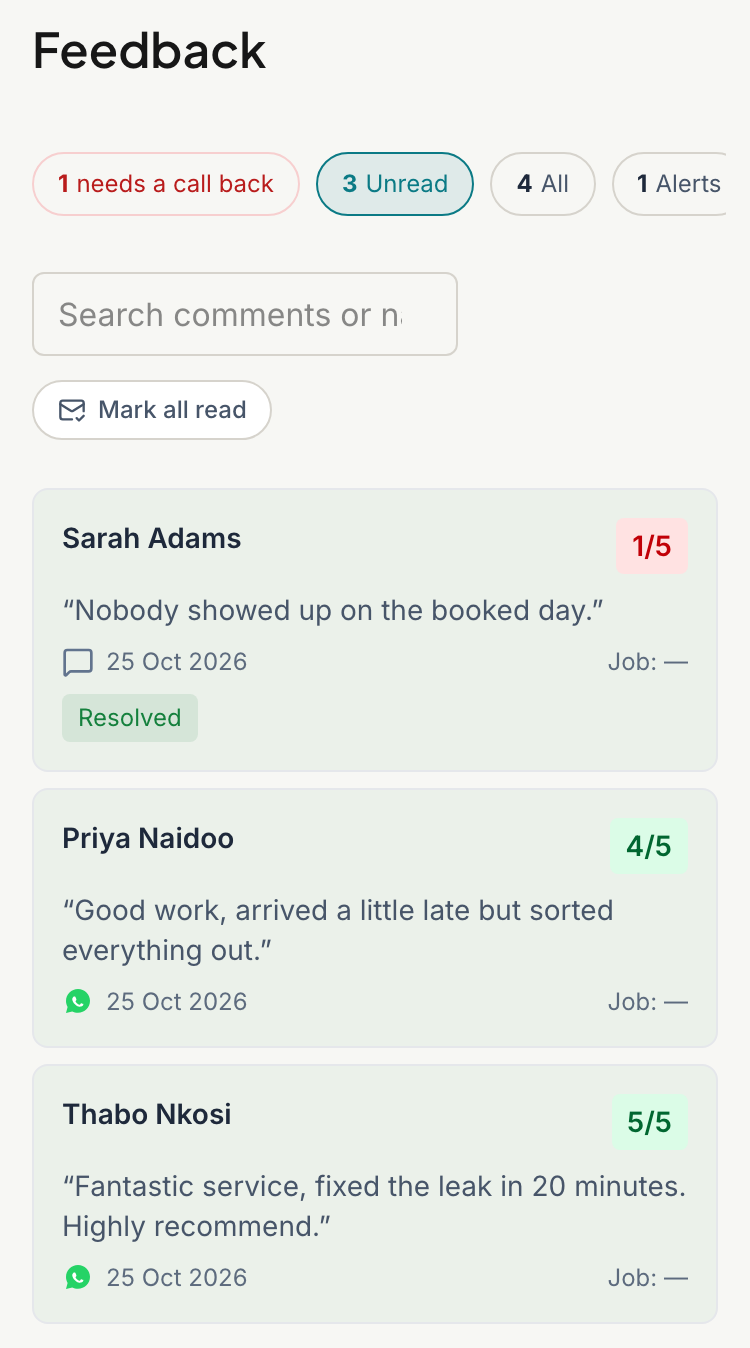
Four chips sit at the top, each with a live count. Tap one to switch the list.
- Unread: responses you have not opened. This is where the tab opens.
- All: every response.
- Alerts: low scores still waiting for a call back.
- Low Score: responses of 1 or 2 stars.
The search box finds a customer's name or a word in their comment. On a phone it says "Search comments or names…". On a computer it says "Search by customer or comment…".
Read and unread
Opening a response marks it read. Read state belongs to each person: when you read something, your teammates still see it as unread. Someone new to your team starts with everything unread.
To bring a response back, open it and tap Mark unread. The same button then says Mark read.
When Mark all read appears, tap it to clear the lot. It only clears your own list.
The badge on the Feedback tab
The badge has room for one number. If any alert is waiting for a call back, it shows that count in red. If not, it shows your unread count in grey. With neither, there is no badge.
The call back queue on a phone
Tap Alerts, or the red "need a call back" pill, to open the Call back queue. It lists every open alert, oldest first, with the score, the customer's name, their job and how long they have waited. Tap a row to open it and call the customer. With none waiting, it says "Nobody is waiting".
Working on a computer
The list sits on the left and the open response on the right. Open alerts are grouped at the top under Call back, with your other responses below.
- Up and Down arrow keys (or Left and Right) move to the previous or next item.
- R presses Resolve on an open alert. Check the Outcome box first, because it resolves straight away.
The keys do nothing while you are typing in a box.
To act on an alert, see Handle a low-score alert. You can also check feedback and alerts from WhatsApp: see Handle alerts on WhatsApp. To see what your customer sees when they rate, read The rating page.
Related articles
Still stuck? Email support@ratemate.co.za