Find your way around RateMate
Updated 25 Oct 2026
RateMate is built for your phone first. This is where things are, and which articles explain each area.
The tabs
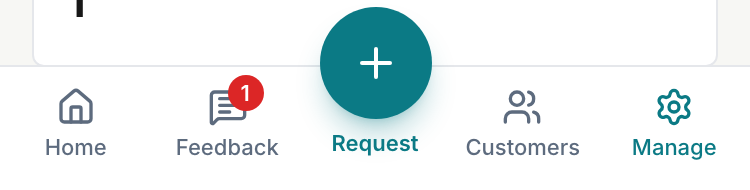
On a phone, five buttons sit along the bottom of the screen.
- Home: your scores, anything waiting for a call back, and your next step until customers start rating you. On a computer this is called Dashboard.
- Feedback: every rating and comment, plus low-score alerts.
- Request: the round button in the middle. Tap it to send a feedback request to a customer, with or without adding them first. On a computer it is the + Request Feedback button at the top of the left-hand menu. If your plan cannot send requests, the button invites you to upgrade instead.
- Customers: your customer list.
- Manage: everything else. On a computer this is called Settings.
On a computer the same places sit in a menu down the left side. It can show icons only or icons with names. Use the button at its bottom to switch.
What is under Manage
On a phone, tap Manage. On a computer, Settings shows the same list on its left.
The people rows are Staff and Team members. Then come the settings rows: Business profile, QR code & link, Public profile, Rating page, Replies, Refer a friend, Billing and Account. On a phone, Sign Out sits at the bottom, with links to the privacy policy and terms.
Every row except Account is for owners only. If you are a team member, you see Account and a note explaining that the rest is for the owner.
Team members only works on the Team plan and during your free trial. On other plans the row shows a Team tag and tapping it explains how to upgrade.
Your notifications left
On a computer, the left-hand menu shows how many notifications you have left, with the number followed by "notifications left". Tap it to open Billing. It does not appear when your plan cannot send requests. There is no meter on a phone, so use Manage, then Billing.
The Trial pill
While you are on your free trial, a small Trial pill sits at the top of the screen. Tap it to choose a plan.
Switch business or add one
Tap your business name or logo at the top of the screen. A box opens where you can switch between your businesses, or tap Add a business to start another. Each new business starts its own trial. On a phone, the same box is the first row under Manage.
Where to go next
- Sending your first request: Send your first request
- Confirming your email: Verify your email
- Locked out: Reset your password
- Run it from WhatsApp: Set up WhatsApp commands
- See what your customers get: What your customer receives
- Can't see a button: I can't see a setting or button
Related articles
Still stuck? Email support@ratemate.co.za